
The essence of this text
Choose what you want to do first; let the application open only the door that task needs.
This updated getting-started guide explains today’s website and application journey in plain language. Its founding Turkish PDF remains unchanged; when the journey changes, the Turkish and English guide are updated with the same date.
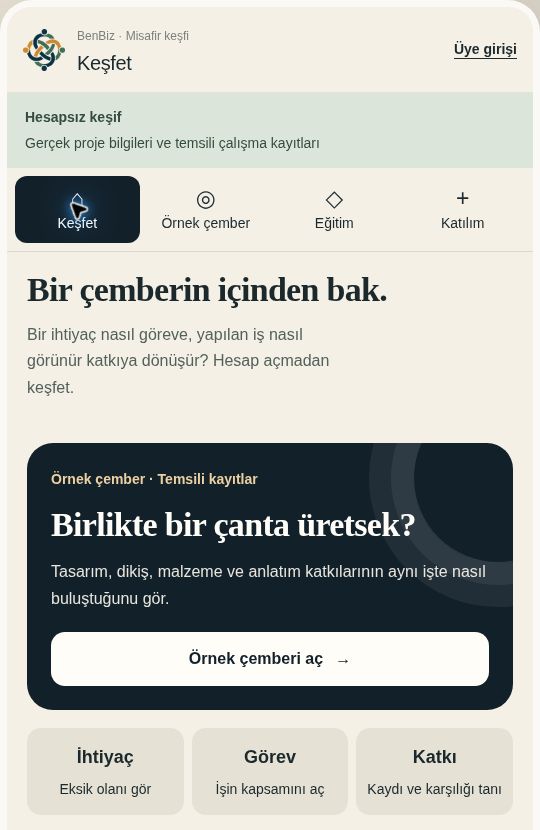
Picture-first route
Find the app route for the work you want to do.
Look at the picture map first. Then open only the section for the thing you want to do.
- 1Build TogetherUse the top shortcut to find an open call and your application.
- 2Look aroundUse Guest if you only want to explore.
- 3Open your own spaceBecome an Explorer Member for a profile and contributions.
- 4Use the bottom menuDepending on your membership, move between Explorer/Today, Circles/Projects, Meet, Reading/Tasks, Wallet and Profile.
- 5Approach a circleRead the need first; then explain your intention and conditions.
- 6Follow your workTrack accepted work step by step under Tasks.
- 7Join Istanbul educationFind requests, promotion, groups and confirmations.
- 8Follow contributions and rightsFind outstanding contributions and partial-payment requests in Wallet.
01Are the website, app and Reading Area the same thing?
+
No. They are three doors into the same BenBiz. The website explains, the app helps people work together, and the Reading Area keeps what we learn and the original sources.
Reading a page does not give access to private circle tasks. You need your own account and that circle’s approval.
- Website · Discover BenBiz and its projects.
- Application · Manage your profile, participation, tasks and communication.
- Reading Area · Read guides and leave questions or corrections.
02Which door should I use?
+
Choose Guest if you only want to look around. Become an Explorer Member if you want your own profile and contribution record. Use Member login if you already have an account.
Explorer Membership does not silently add you to a circle. A private circle space opens only after a conversation and clear approval.
- Guest · Look without opening an account.
- Explorer Member · Create a profile, contribute to the Reading Area and see open circles.
- Circle member · Use the tasks and communication space of an approved circle.
03What do the bottom menu and top shortcut do?
+
The bottom menu depends on membership. Explorers see Explorer, Circles, Meet, Reading, Wallet and Profile; circle members see Today, Projects, Meet, Tasks, Wallet and Profile. Build Together is a shortcut below the top header.
- Today · Shows your nearest task and next step.
- Projects · Shows circles and open needs.
- Meet · Helps you find members who chose to be visible.
- Tasks · Shows work you have accepted and its state.
- Wallet · Shows the payment area in preparation; real money operations remain disabled.
- Build Together · Opens areas and applications from below the header.
- Profile · Opens your details, visibility settings, the Reading Area and—if authorised—the coordinator area.
04How do I join a circle?
+
Open the circle under Projects first. Read its purpose, preparation state and open needs. Send a participation request if it feels right for you.
Explain what you want to make or learn, what you can offer and how much time you can carry. If the coordinator asks a question, answer in the same record.
- Choose the circle.
- Read its purpose and need.
- Write your intention in your own words.
- Follow the answer under Participation.
05How does a need become a task?
+
If you want to help with an open need, write what you can do and under which conditions. Do not hide your time, expenses or limits.
The coordinator asks questions. When both sides agree clearly, the offer becomes a task. Work you did not accept is not your task; unpaid work is never assumed.
- Read the need.
- Write your conditions.
- Clarify them together.
- Open the task record after acceptance.
06How do I follow my task and contribution?
+
Open your work under Tasks. If the scope is correct, begin; add progress to the record and send it for review when finished.
My Contribution Records shows proposed and human-approved values separately. The laboratory does not currently create automatic payment, shares, BenAkçe or BenGram.
07How do I find and message someone?
+
In Meet, search by name, country, intention or skill. You see only people who chose to be visible and only the information they chose to share.
If your contact request is accepted, an in-app conversation opens. The envelope shows conversations; the bell shows changes to tasks and requests. Email addresses and phone numbers are not public.
08Who can see my profile?
+
Edit your name, city, short introduction, skills and intentions in Profile. You may show yourself to all BenBiz members, people in a shared circle, coordinators only or only yourself.
Your application account, Meet visibility and circle membership are three separate records. Opening one does not silently open the others.
09What does a coordinator do?
+
A coordinator first chooses a circle they manage. They see participation requests, ask questions, record the conversation and give a reasoned decision.
When a responsibility is mutually accepted, they may connect someone to that circle as a participant, coordinator or reviewer. This authority belongs only to the selected circle; it does not grant control over all BenBiz.
10Where is the Reading Area, and what if something goes wrong?
+
Open the current guides from the “BenBiz Külliyatı / Reading Area” link inside Profile. Choose the guide and section to leave a question, correction, objection, experience or new source.
If a screen looks incomplete, check the selected circle, your membership and visibility choice, then refresh once. If the problem continues, share the screen name and visible warning. Never send your password or payment information.
11Which route should I use for Istanbul education?
+
Open İstanbul Eğitim Çemberi in the app and choose your intention under Katılım yolları. Learning, offering a venue, helping with promotion and taking an organisational responsibility are four separate requests. A verified Explorer Member account is sufficient.
If you start on the website, signing in or creating an account returns you to the selected education route. For a learning request, confirm that you are an adult contacting the team for yourself or a child whose guardian you are.
Open your request under Taleplerim to see its stage, assigned group and coordination notes. Add information, withdraw an open request or follow changes under Talebin gelişimi. Submitting a request does not create circle membership, a confirmed place or a payment.
- Eğitime katılmak istiyorum → Programme and available times.
- Mekân sunabilirim → Location, days and working conditions.
- Tanıtıma katkı sunabilirim → Audience, channel and intention.
- Organizasyonda sorumluluk alabilirim → Work you can do and your availability.
12How do I use my promotional link and QR code?
+
After your promotional contribution is accepted, create a content draft under Tanıtım bağlantılarım. Add a title, your personal invitation and an optional video address. Once coordination activates it, copy the personal link and download the QR image pointing to the same address.
Show the QR in the video and include a clickable link in its description. Someone watching on a phone can use that link. Create a separate promotional record for each piece of content to distinguish its applications. Reusing one QR across several pieces combines their results.
Address your audience in your own voice. Use the educators’ original wording for course definitions, contents and outcomes, with your personal invitation alongside it. Pausing a link preserves previous applications but stops new arrivals being attributed to that link.
13Where do I verify who referred an application?
+
Opening an active promotional link creates an arrival record linked to that promotion. The applicant sees the source code in the form. The arrival record travels through sign-in and is bound to the account on submission. A manually entered code is separately labelled Kodla bildirildi.
The promoter opens Başvuru bazında sağlama for their own link. They see the EG- application reference, its stage, and source and delivery confirmations. Coordination opens that same reference under Başvurular to compare the underlying record. Promoters cannot see participant names, contact details or children’s information.
For a mistake, the applicant sends an explanation through Kaynak bilgisinin düzeltilmesini iste. Coordination uses Kaynağı değerlendir veya düzelt to compare records and give a reason. Initial arrival information and the correction history remain. An application reassigned to another promotion is shown separately from the previous promotion’s current total.
Kaydedilen bağlantı açılışı counts recorded link openings, not unique people, QR scans or video views. Reopening the same link may not create another record; different devices are not automatically matched. A source record does not prove a video was watched. The arrival record’s seven-day validity supports continuing an application; it is not a reward window. If it becomes invalid, use Geliş kaydını kaldır and check the code before continuing.
14How does coordination prepare an education group?
+
Go to İstanbul Eğitim Çemberi → Koordinasyon → Genel görünüm for pending requests, missing preparations and open responsibilities. Review applications and place a learner in a suitable group for the same programme, or waitlist them. Only authorised Istanbul education coordinators can use this area.
Under Eğitim grupları, record the programme, time, venue and two instructors. The first group is prepared for no more than 8 participants and 2 educators, for 10 people in total. The venue needs a large shared table or suitable classroom layout, a projector and a suitable projection wall. It does not need to supply teaching materials.
No district in Istanbul has priority. The venue is chosen according to where the group lives and how easily participants can reach it. A coworking space, café, office, a space offered by friends, or a daily or longer-term rental can be considered. Step-free access, a central location and proximity to the sea are preferences, not requirements.
Before starting, confirm the schedule, venue, table capacity, projector, wall and attendance of two distinct instructors. Creating a preparation record does not start a course. Renew the relevant confirmation after a schedule or venue change.
For a started course, open Eğitimin gerçekleşmesini teyit et in the application detail and record planned and attended sessions, instructor, period and supporting information. Then complete the learner’s application. Completing a group requires all assigned learner applications to be completed. This is a human confirmation recorded by coordination, not automatic attendance tracking.
Moving an application to another group or removing it from a group clears its current delivery confirmation. The previous confirmation remains in the history; the new group requires a fresh confirmation.
15How does education work join my daily activity?
+
An accepted venue, promotion or organisation contribution can receive a responsibility. Start it under Üstlendiğin çalışmalar, record progress and move it to Teyit bekliyor when ready. Coordination completes it with supporting information and a reason.
The same education task appears in Bugün and Görevler. Find your own coordinator-confirmed work in Katkı kayıtlarım. These are views of the same work; an education task does not automatically create contribution points or payment.
Education updates appear in the shared notification bell. Open a notification to reach the relevant area; read status is saved to your account. Shared activity updates approximately every minute while the app is visible, when returning to it and after an action. Use Güncelle for the latest coordination view.
16How are receipts, refunds and promotional compensation tracked?
+
Coordination opens Tahsilat, iade ve tanıtım karşılığı in an application. Use Dayanaklı hesap kaydı ekle to enter the type, amount, document or transaction reference and a checkable explanation, then Teyit için kaydet. Under Kaydı değerlendir, review the support and confirm or void the entry with a reason.
A refund links to a confirmed receipt for that same application and cannot exceed its remaining amount. Promotional compensation requires the agreed conditions and calculation. Confirmation checks completed education, delivery and source confirmations, and sufficient net receipts. Coordination reviews an alert if a later refund creates a mismatch.
Applicants see their own Katılım ücreti ve iadeler. Promoters see any confirmed compensation in their own promotion’s reconciliation row. İşlem ve teyit geçmişi shows the history of changes.
These are manually entered, human-confirmed tracking records. This area does not collect or send money or query bank transactions automatically. No fixed promotional reward rate is configured. Confirmed compensation does not mean it has been paid.
17Simulation first, followed by pilot operation
+
Guide 1.3 adds simulation-based checks of the three roles and venue selection around groups across Istanbul. Participant, promoter and coordinator steps use simulated accounts on the same application record; test data is not published as genuine applications.
Pre-checks connect QR link generation, preservation of source information through the sign-in route, application reconciliation, group changes, delivery confirmation, tasks, notifications and evidence-based account records. Failures are corrected, the same scenario is rerun and its outcome reported.
This simulation does not verify a physical phone camera, real email verification, a venue or delivered education. Real-user checks will take place when the first circle begins operating; preparation can continue through simulations until then.
The first group’s programme and venues suited to its travel needs will be clarified. Promotional compensation, cancellations, refunds and the decision process for multiple referrals will be put in writing. Approved educator-supplied content and videos will be added with their sources as they arrive.
18Shared Decisions: from a proposal to implementation
+
Open “Ortak Karar” from Today, Meydan, the relevant circle or learning group. Choose “Konu aç”, select a scope and indicate whether to gather views or propose a decision. Explain the need, your reasons, the proposal and any relevant page link. A verified Explorer Member account is enough for general proposals.
When voting opens after discussion, the text, electorate, deadline and rule are fixed. The starting rule requires at least 60% participation and yes votes from at least 60% of all cast votes. Abstentions count as participation, not approval. You can change your own vote until closure. A coordinator who can verify the complete list opens a general ballot.
Use the notification bell and topic-following option to track developments. An accepted decision may open a task, but responsibility is always taken on voluntarily. The person completing it adds an explanation or link showing what was done, and another person confirms it. There are no phone push notifications; the result is calculated on the next app refresh after the deadline. The dedicated Shared Decisions guide includes examples and a 60% / 60% teaching calculation.
19Where do I find Build Together and my application?
+
After signing in, “Build Together” sits directly below the header across the workspace. Explore open calls under “Explore” and your records under “My applications”. “My preferences” is used for connection explanations only with your choice.
Describe your contribution, experience, availability and participation mode when applying to an open call. A draft has not been sent. Continue in the same submitted record rather than creating repeated applications.
Status, reasons and messages remain together. Membership and tasks are arranged separately after acceptance; when a task has been linked, “Open linked task” leads to that work.
To send a saved draft, open “Review terms and complete draft”, read the current call and tick the confirmation box. If the call has changed, the screen refreshes, your text stays and confirmation is requested again. Updating and sending complete in one step.
20How do application notifications and follow-up work?
+
At the notification bell, open “Build Together updates”. New applications are visible to the relevant area coordinators; replies, conversations and status changes reach the relevant person. Opening a notification leads straight to the application and conversation history. Read status is saved to your account.
While the app is open, updates refresh roughly once a minute and when you return to the window. This does not send phone notifications or email. A refresh failure shows a warning and a retry option.
“Today” shows next steps for active applications. An overdue follow-up date or seven days without an update marks an active application as needing attention; this indicator is not a promised response time.
21How do I prepare the first calls and welcome an applicant?
+
With coordination access to the area, open “Build Together → Coordination”. “Prepared call draft” offers an app walkthrough and a welcoming draft. Selecting one only fills the form; saving creates a draft.
Agree the first task, proposed time, responder, participation mode and terms. Once verified, add a publication reason and separately open the call for applications. Do not present unknown terms as confirmed.
When someone applies, briefly explain what you understood and the next step. Propose a conversation time if useful; record the outcome with reasons. Being a circle coordinator does not open every area’s applications; area access is assigned separately.
To change a call’s time commitment, participation mode or terms, pause it, update the text and verify it before reopening. Unsent drafts require confirmation against the latest call. Terms stored in previously submitted applications are not silently changed; discuss any change with the person in the same record.
22One member can hold several responsibilities
+
Open Circle → Coordination centre → Member card → Responsibilities. Add promotion, education, organisation, welcoming, venue support, content, technical support, financial records, documentation or mentoring; you can also name another responsibility. Multiple entries can belong to the same member.
Describe each responsibility’s scope, timing and stage separately. Promotion may be active while teaching children aged 4–6 is still in preparation. When a prerequisite is recorded, it must be confirmed with an explanatory note before the responsibility can be marked active or completed.
Circle permissions determine which application actions a member can perform. Responsibilities describe the work they take on. Assigning a responsibility does not automatically grant management, teaching delivery or payment authority. Members see their responsibilities in Profile, and change history is retained.
23Circle establishment and the management area
+
The flow has four stages: describe the intention, plan needs and team, obtain establishment approval, then create the circle. Drafts are private; general coordination can review submitted ideas. Review results and requests for more information are connected to application notifications.
Private drafts, submission and general coordination review are available. An approved founder creates the circle, coordinator membership, shared conversation and initial needs together. Retrying the same operation does not create another circle.
Circle → Circle Identity and management area brings together team responsibilities, needs, work, decisions, conversation, invitations and Store. Identity, working plans and needs are available; editing is restricted to that circle’s authorised coordinators.
24BenBiz Circle Identity and Store
+
The shared identity is a permanent BenBiz Circle number beginning with BC. Renaming the circle does not change its identity. The application and Store use the same circle record.
New circle storefronts use that shared identity. Existing storefront numbers and transaction history are preserved; the shared Circle Identity is displayed separately. Existing storefronts remain available, while a new circle storefront requires a verified shared identity.
Establishing a circle does not automatically create a storefront, approve a maker or activate sales and payments. Store admission and permission to act for a circle follow their own steps.
25Where can I follow contributions, outstanding rights and partial-payment requests?
+
Open Wallet → Ben Akçe · My Rights. Submit the total value of a completed contribution, compensation already received, its project code and agreed terms for independent review. A pending proposal is not a confirmed payment. The pilot app interface is mainly Turkish.
For an accepted record, request a partial payment and follow records of actual outside payments and your remaining contribution. Project summaries include prior compensation; the same amount is not counted twice. Success-dependent contributions and established payment obligations are shown separately.
New records preserve the accepted principles version. Where sharing terms have been agreed, start and end dates, the reserve limit, sharing method and position after full repayment are recorded separately. Profit calculation and distribution are not open. Read the contribution and rights account for the explanation behind these steps.
Read this guide together with the related current surface.
Open the BenBiz application ↗Reflect together
What is the first thing you want to do in the application, and is Guest, Explorer or circle-member access enough for it?
Form your own answer first. Then identify where explanation, objection or a new practical test is needed.
Bring your note into the app ↗BenBiz_Dijital_Uygulama_Cekirdek_Kadro(2).pdf
Current guide 1.10 · 24 October 2026
Authored English web guide: 24 October 2026.
The Turkish source PDF remains unchanged; today’s website and application journey is updated in this guide.